

Database Migration Strategy in Microsoft Azure
- Abhijith Nair

- Jun 2, 2022
- 3 min read
Updated: Jul 7, 2025

In the last blog, we learned about the different database options that are offered by Microsoft Azure. These options help organizations create database solutions of any size and domain. However, a major concern for companies is to understand how to migrate their existing databases to Azure.
What to expect?
In this blog, I will explain a Database Migration Strategy that can be used by organizations to prepare their databases for migrating over to Azure. We will discuss how to perform assessments using Database Migration Assistant (DMA) & understand the migration methods that are offered by the Azure Database Migration Service (DMS).
Database Migration Strategy
A migration strategy for databases must be well-defined and such a plan should consider factors such as data source-target integration, history of data to be migrated, vendors or in-house applications that use the data etc., hence reducing the overall impact while performing the actual migration process. Following is the step-by-step approach that must be considered while creating a database migration plan.
Step 1: Discovery
These sessions allow organizations to better understand and lay the requirements that are required as part of the migration process. As a result, following are some key information that must be captured at this stage.
a. Server Name & Edition
b. CPU Utilization
c. Number of Databases
d. Total & Individual Database Size
e. Environment
f. Connected Applications
Step 2: Assessment
Once the databases to be migrated are discovered, the next step would be to assess these databases. The Microsoft Data Migration Assistant (DMA) is a tool that allows users to perform a pre-migration assessment, identifying any issues that may prevent migration.
Creating Microsoft DMA Assessments
Following are the steps to assess databases using Microsoft Data Migration Assistant tool:
1. Download the Microsoft Data Migration Assistant tool. The tool can be downloaded from here.
2. Create a new assessment project. Provide a project name, assessment type, source, and target server details. Let’s use the target server as Azure SQL Database Managed Instance.
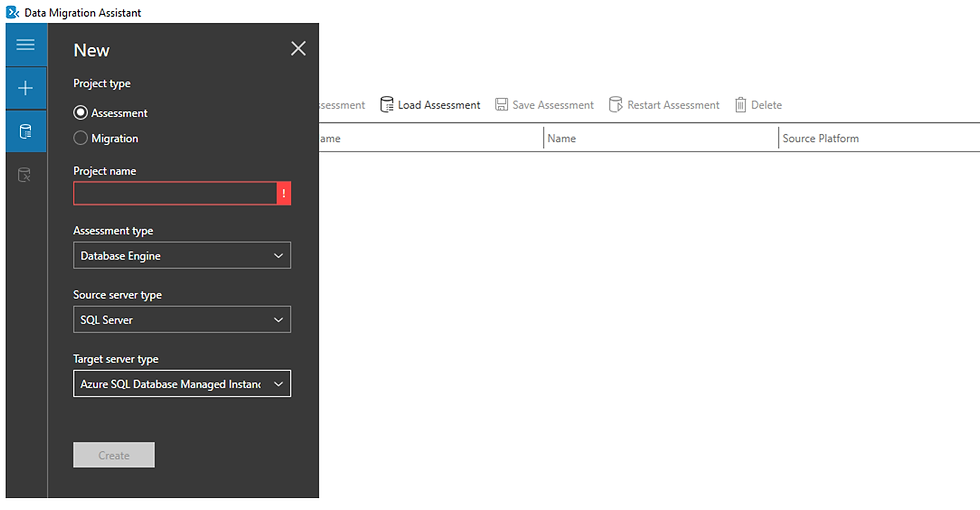
3. Provide source server name and credentials.

4. Add all the databases that needs to be assessed by the DMA tool and start.

5. Once the assessment is finished, you can save or export the results for future verification.
Assessing Issues from DMA
As a result of performing database assessments, the Database Migration Assistant tool provides two types of assessments:
a) SQL Server feature parity: These are recommendations of approaches available in Azure, that can help you plan your migration effort.
b) Compatibility Issues: These typically would be four major types of issues:
Breaking Changes: Any references to objects such as a stored procedure that doesn’t exist, could result in breaking changes.
Behavior Changes: Any references to syntax issues could result in a behavior change. For example, any unqualified Joins, wrong use to GROUP BY statements etc.
Deprecated Features: Any references that are deprecated.
Information Changes: Any references to partially supported or deprecated features.
Note: As the compatibility number increases, the number of issues recommended by DMA would also increase.

Once these issues are addressed accordingly, the next step is to perform migration & optimization.
Step 3: Migration & Optimization
The Azure Data Migration Service (DMS) is Microsoft’s approach to enable or perform migrations from several database sources (both on-premises & cloud) to Azure cloud platforms. This service can be used to migrate database of any data and migration type. The service allows user to easily move data, objects, and schema.
Choosing a Migration method in Azure DMS
The Azure Database Migration Service currently supports two types of migration methods:
1. Offline Migration
2. Online Migration
With offline migrations, application downtime begins while the migration starts. To limit downtime to the time required to cut over to the new environment when the migration completes, use an online migration. It is recommended to test an offline migration to determine whether the downtime is acceptable; if not, pursue the online migration method.
The following table shows Azure Database Migration Service support for offline migrations.

The following table shows Azure Database Migration Service support for online migrations.

Once an appropriate method is selected, the next step would be to migrate the databases over to Azure, perform application cutover and perform optimization.
I hope this blog helped in capturing some key information while designing a plan for a database migration strategy in Azure.
In the next blog, I will explain how to migrate an on-premises SQL Server database to Azure SQL Managed Instance using both offline and online migration techniques.
Until then, Happy Blogging!


Comments